
You won’t find a visible pause button on Reels. This pause Instagram reels complete guide starts with the key move: tap and hold the screen to pause, then lift your finger to resume. That’s it. The same long press works on both iOS and Android in 2026, and it’s the only native way to stop a Reel mid-frame without moving to another screen.
For quick context, Instagram began as a photo app in 2010, then added short-form video features over time, including Reels, which now play by default in a vertical feed. If you’re used to a dedicated pause icon on other apps, this design can feel odd. However, once you learn the long-press gesture and a few small placement tips, you’ll pause on the exact frame you want, every time.
If you’re a creator, marketer, or just trying to read a quick caption on a fast-moving clip, the steps below will save you time. You’ll also find fixes for common “it won’t pause” issues, plus tools to study ads frame by frame. And because you asked for a 2026 answer, everything here reflects how the current Instagram app behaves right now.

Can You Actually Pause Instagram Reels? Here's the Quick Answer
Yes. You can pause a Reel by pressing and holding the video with one finger.
While your finger stays on the screen, playback freezes and audio mutes.
When you lift your finger, the Reel resumes. There’s no on-screen pause icon to tap, and there’s no separate pause toggle in menus. The long press is the one built-in method that works the same on iOS and Android.
Why there's no pause button
Because Reels auto-play, Instagram keeps the interface clean and gesture-first. That’s why the hold-to-pause trick isn’t obvious at first glance. However, it’s fast once you know it. For example, if you want to read small text or study a frame, touch the center of the video and keep your finger down. The frame will stay locked as long as you hold.
On iPhones and Android phones, the gesture behavior is the same, but there’s one nuance that trips people up: if you press near edges, you may trigger other actions, like opening the creator’s profile, bringing up the audio page, or showing the share sheet. Therefore, aim for the center third of the video. You’ll avoid accidental taps on overlays, usernames, or buttons.
In this pause Instagram reels complete guide, you’ll also learn how to pause in different parts of the app, like the main feed vs. the Reels tab vs. Explore. Although the gesture is the same, UI overlays change by location, so your finger placement matters more than you think.
- Quick facts:
- There is no visible pause button on Reels.
- Hold anywhere on the video to freeze it; lift to play.
- Tap near edges can open overlays instead of pausing.
Step-by-Step: How to Pause Instagram Reels on Any Device
You came here for steps. Here’s the fast, no-fluff version you can try right now.
- Open the Reels tab:
- Tap the play icon in the app’s bottom menu to open the dedicated Reels feed.
- Press and hold to pause:
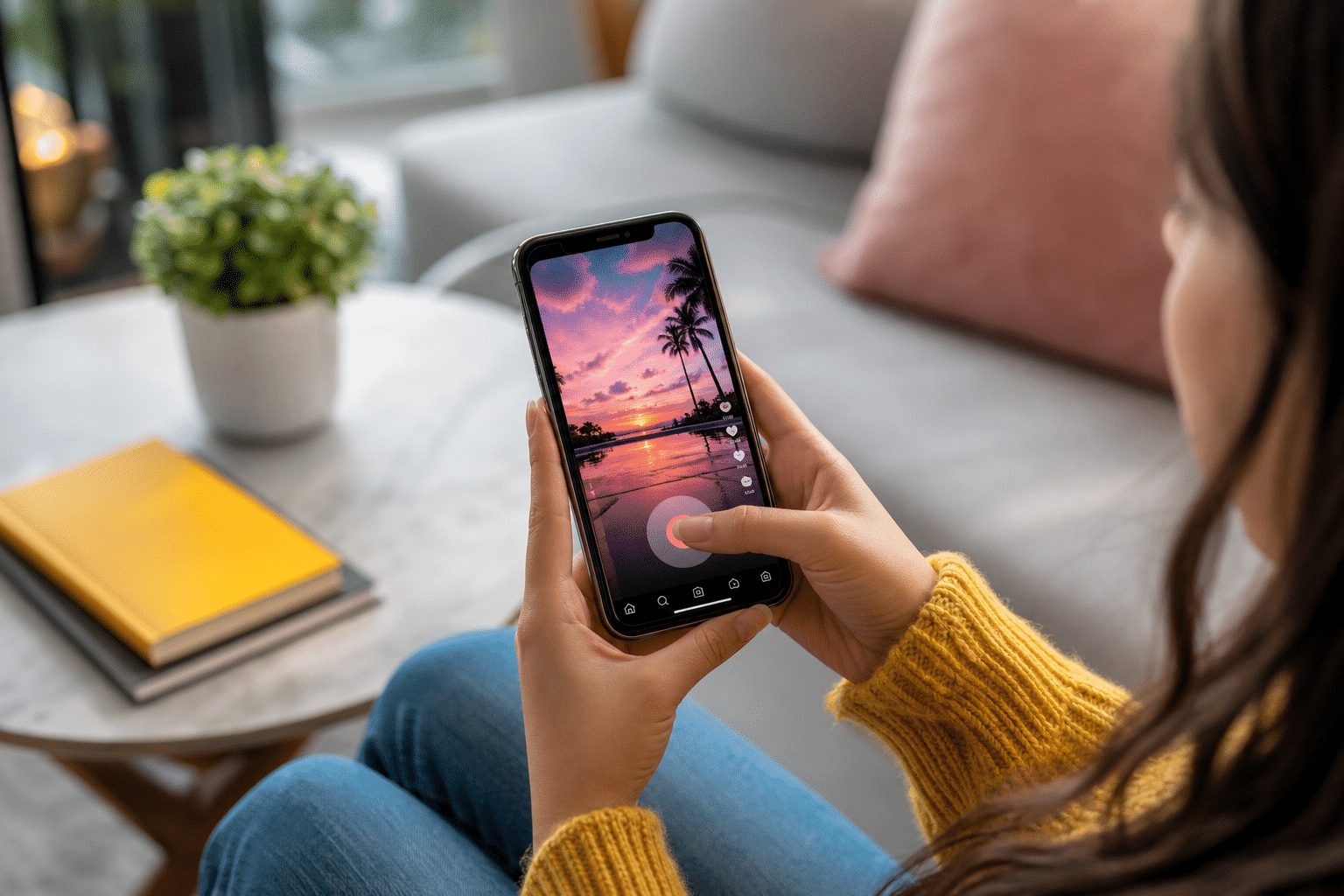
- Touch and hold the center of the video to freeze the frame. Keep your finger down to keep it paused.
- Lift to resume:
- Lift your finger and playback continues from the same frame.
- Repeat as needed:
- Press and hold again any time you need to freeze another moment.
Pausing in Different Places Inside Instagram
- In your Home feed:
- Reels appear between posts. The hold-to-pause gesture works the same, but avoid tapping on the caption area, username, or like/comment buttons.
- In the Reels tab:
- This is the cleanest space to pause, since UI overlays are minimal. Aim for the middle of the screen.
- In Explore:
- Tiles open individual Reels. When a Reel opens, press and hold the video area, not the edge where the back arrow or search bar sits.
How to Grab a Still for Notes or Edits
Sometimes you want to study a frame longer, share it with a teammate, or pull it into an edit.
- Use your phone’s screenshot tool while holding to pause:
- iOS: Press Side + Volume Up.
- Android: Varies by model, commonly Power + Volume Down.
- Use screen recording:
- Start a screen recording, then play the Reel. You can pause and scrub the recording later to grab the exact frame. For high detail, record at your device’s highest quality setting.
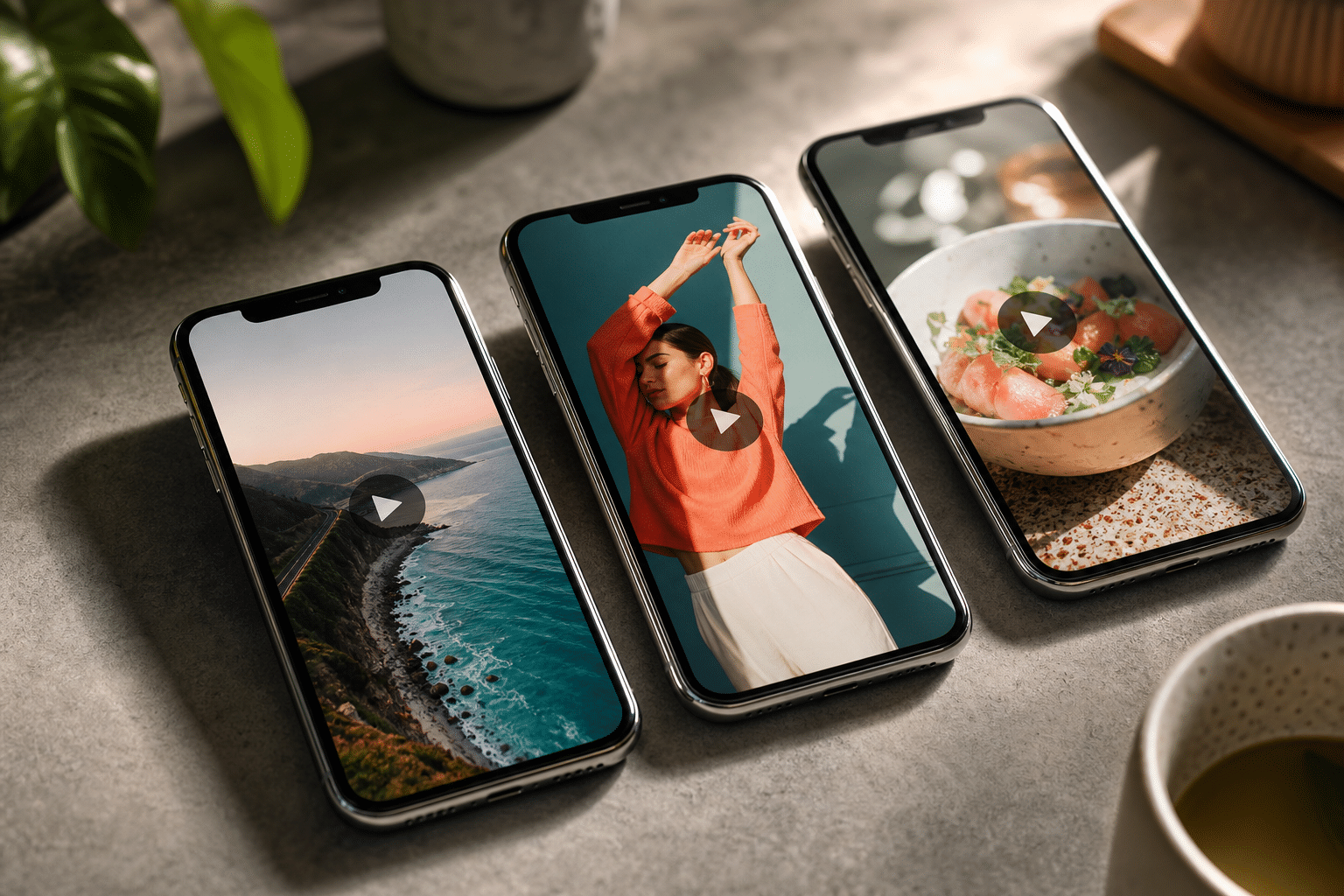 opening the Reels tab, 2) a finger pressing and holding the center of a Reel, 3) the same frame frozen with subtle “Paused” overlay; clean icons; legible labels)
As you practice, you’ll notice that pressing near stickers, captions, or the audio track name can open extra pages instead of pausing. That’s normal. Just re-center your finger and try again. Because this is a gesture, there’s no difference between iOS and Android for pausing, both follow the same long-press rule in 2026.
Finally, if you forget the steps, remember this line from the pause Instagram reels complete guide: center, hold, and lift.
Also Read!
How to Use Facebook Marketplace: A Complete Beginner’s Guide
How Does Facebook Marketplace Work: A Complete Beginner’s Guide
Common Mistakes That Prevent Reels from Pausing
If the hold gesture isn’t working, you’re not alone. Most issues come down to tap zones, overlays, or outdated apps. Fortunately, fixes are simple and take less than a minute.
First, make sure you’re holding, not tapping. A quick tap is a play/pause toggle in many apps, but not here. On Reels, a tap can like a video or reveal UI, while a long press pauses it. Therefore, rest your finger and wait a beat until the frame freezes.
Second, avoid action zones.
- The left edge, you might swipe back.
- The right edge, you might swipe forward or open share.
- The username or caption, you might open the creator’s profile.
- The audio line, you might open the track page.
Fixes That Work in Seconds
- Update Instagram:
- Head to your app store and check for updates. Old versions can behave oddly with gestures.
- Restart the app:
- Close it fully, then relaunch. This clears small UI glitches.
- Check accessibility touch settings:
- Features like AssistiveTouch (iOS) or accessibility shortcuts (Android) can change how long-press works. If a custom gesture interferes with holds, disable it while using Reels.
- Clear UI overlays:
- If overlays stack up, a quick swipe down to dismiss comments or menus can restore the clean video area. Then press and hold again.
- Try a different finger placement:
- Press the center third of the video with one steady finger. Avoid multi-touch or edge swipes.
As you troubleshoot, keep this tip from the pause Instagram reels complete guide in mind: the center of the video is the safest pause target. If you still can’t pause after updates and restarts, test on another phone to rule out a device-specific touch setting.
Helpful Tools and Settings for Managing Your Reels Experience
Once you can pause on demand, a few built-in controls make Reels easier to live with day to day.
- Mute without leaving:
- Tap the speaker icon to silence audio. You can also use your device volume keys.
- Save for later:
- Use the bookmark icon to save a Reel to a collection. It’s great for recipes, workouts, and ad examples you want to study.
- Share or copy link:
- Tap the paper-plane/share icon to send to friends or move a link into your notes.
For creators and marketers who want to study ads, pausing helps, but recording is better. Start a screen recording, let the Reel play, then scrub the recording frame by frame. This makes it easier to dissect hooks, captions, and callouts without keeping your finger on the screen.
Go Deeper: Ad Research With PowerAdSpy
If you want a deeper look at competitive Reels ads beyond your feed, tools like PowerAdSpy can help you do real research. PowerAdSpy’s Instagram Ad Spy Tool provides access to data on millions of ads from over 100 countries, with both video and image formats and a strong focus on Social Video Ads. Users report a 15% reduction in A/B testing volume within two months, a 19% improvement in user revenue with less workforce and better work efficiency, and 26% say they save at least one full day when preparing for an advertising project. In addition, 23% describe it as affordable, easy, and complete. Used well, those gains mean less guesswork and faster campaigns.
"We used to struggle with Facebook ads for lead generation. It felt like we were throwing darts in the dark. PowerAdSpy helped us see what our competitors were doing right, and suddenly, things clicked. The clarity of the tool makes ad decision-making much easier." — Steve Decker, SaaS Marketing Manager
Moreover, you can jump to live ad posts to check real-time engagement and see audience comments in context. That context explains why a given hook, caption, or visual kept viewers watching.
As an aside, if you need a quick primer on Instagram’s background, the Instagram article on Wikipedia covers the platform’s history and features.
Remember, though, your day-to-day control still starts with simple app moves. The pause Instagram reels complete guide is about better gestures first, research second.
Also Read!
What to Do Next: Take Control of Your Reels Feed
If Reels eat more time than you’d like, you can slow them down, without quitting the app. Use these steps to set guardrails and make the feed work for you.
- Update Instagram:
- Install the latest version so gestures and controls behave as expected. Fresh builds also fix bugs that block the long-press pause.
- Practice the hold gesture:
- Open the Reels tab. Press and hold the center of a few videos. Train your muscle memory until it feels natural. Small wins add up fast.
- Use “Not Interested” to train the feed:
- Tap the three dots on a Reel you don’t want to see. Choose “Not Interested.” Do this for 10–15 clips in a row and your feed will shift within a day or two.
- Save the good stuff:
- Tap the bookmark icon on Reels worth revisiting. Create named collections like “Recipes,” “Edits,” or “Ad Hooks” so you can find them fast.
- Adjust autoplay and data settings:
- In Settings & privacy, look for data or media settings related to autoplay. If you can’t turn off auto-play, you can still set lower data use, which may slow preloads and make it easier to pause on time.
- Use screen recording for study sessions:
- Record a batch of Reels you want to learn from. Then review the recording at your pace, pausing and scrubbing as needed. It’s perfect for ad swipe files, tutorials, and fitness cues.
A Short Routine That Works
- Morning (5 minutes): Clear 5–10 Reels with “Not Interested.
- Lunch (3 minutes): Practice hold-to-pause on 3 clips with tight text.
- Evening (10 minutes): Save 3 useful Reels to a collection and record 1–2 ad examples for study.
As you keep at it, your feed will match your taste, and the pause habit will stick. The pause Instagram reels complete guide isn’t about hacks, it’s about a few simple moves you repeat until they’re second nature.
Key Takeaways
- Hold to pause, lift to resume:
- There’s no on-screen pause button for Reels. The long-press gesture is the native way to freeze a frame on both iOS and Android.
- Aim for the center:
- Pressing near edges or on overlays can trigger other actions. The center third of the video is the safest pause target.
- Fixes are quick:
- Update the app, restart Instagram, clear overlays, and review accessibility touch settings if holds don’t register as expected.
- Save and record to study:
- Use the bookmark to save Reels into clean collections. Start a screen recording to analyze ads or detailed tutorials frame by frame later.
- Research beyond your feed:
- For marketers, tools like PowerAdSpy’s Instagram Ad Spy Tool show millions of video and image ads across 100+ countries, so you can see what works before you spend.
In short, you can pause any Reel in seconds, manage noise in your feed, and build a smarter research flow, all without leaving the app. And if you need deeper competitive context, a focused ad research session will pay you back on your next launch.
What to Do This Week
Days 1–4
Day 1: Update Instagram and practice the hold-to-pause move for five minutes. Press and hold the center on ten different Reels. If the gesture fails, move your finger slightly toward the middle and try again. Then tap “Not Interested” on ten clips that don’t match your taste.
Day 2: Create three save collections, “Learn,” “Make,” and “Ads.” Save five Reels into each. This gives you fast recall and keeps the best ideas in reach when you need them.
Day 3: Record a five-minute screen session of Reels you want to study. Later, scrub the recording to capture exact frames. Add those frames to a notes doc with short comments on hooks, captions, and shots.
Day 4: Trim your feed. Spend three minutes marking “Not Interested” on low-quality or off-topic Reels. Your future self will thank you.
Days 5–7
Day 5: Practice pausing in each location: Home feed, Reels tab, and Explore. Notice where overlays sit and adjust your finger placement. You’ll gain speed with each try.
Day 6: Share one saved Reel with a friend or teammate and ask what caught their eye in the first three seconds. Compare notes and add the best idea to your swipe file.

Day 7: Review your collections. Remove clips that no longer help, and star the top three ideas you want to use next week. If you’re running ads, schedule a 20-minute research block to scan competitive Reels ads and note proven hooks. Your pause habit plus a tight research routine will make 2026 a lot easier.
For background context on the platform itself, read the overview of Instagram on Wikipedia.