**Start Your Free Trial Today →
Copying a rival’s ad rarely works; learning why it runs today does. This guide shows you how to use linkedin ads library to see any Page’s active ads and turn what you find into smarter tests in 2026.
You’ll get a fast, practical workflow: where to look, what each field means, and how to spot patterns worth testing. The short version: search a company’s Page in the library, filter by country, date, and format, then log the creative, copy, and CTA themes you see. Next, compare those themes across 3–5 competitors and build one small test per insight.
If you also run Facebook and Instagram, pair this with our walk-through on the Meta archive: read the guide to Meta’s Ad Library for competitor research. You’ll learn how to compare messages across platforms without guessing.

What Is the LinkedIn Ads Library and What Can You Actually Find There?
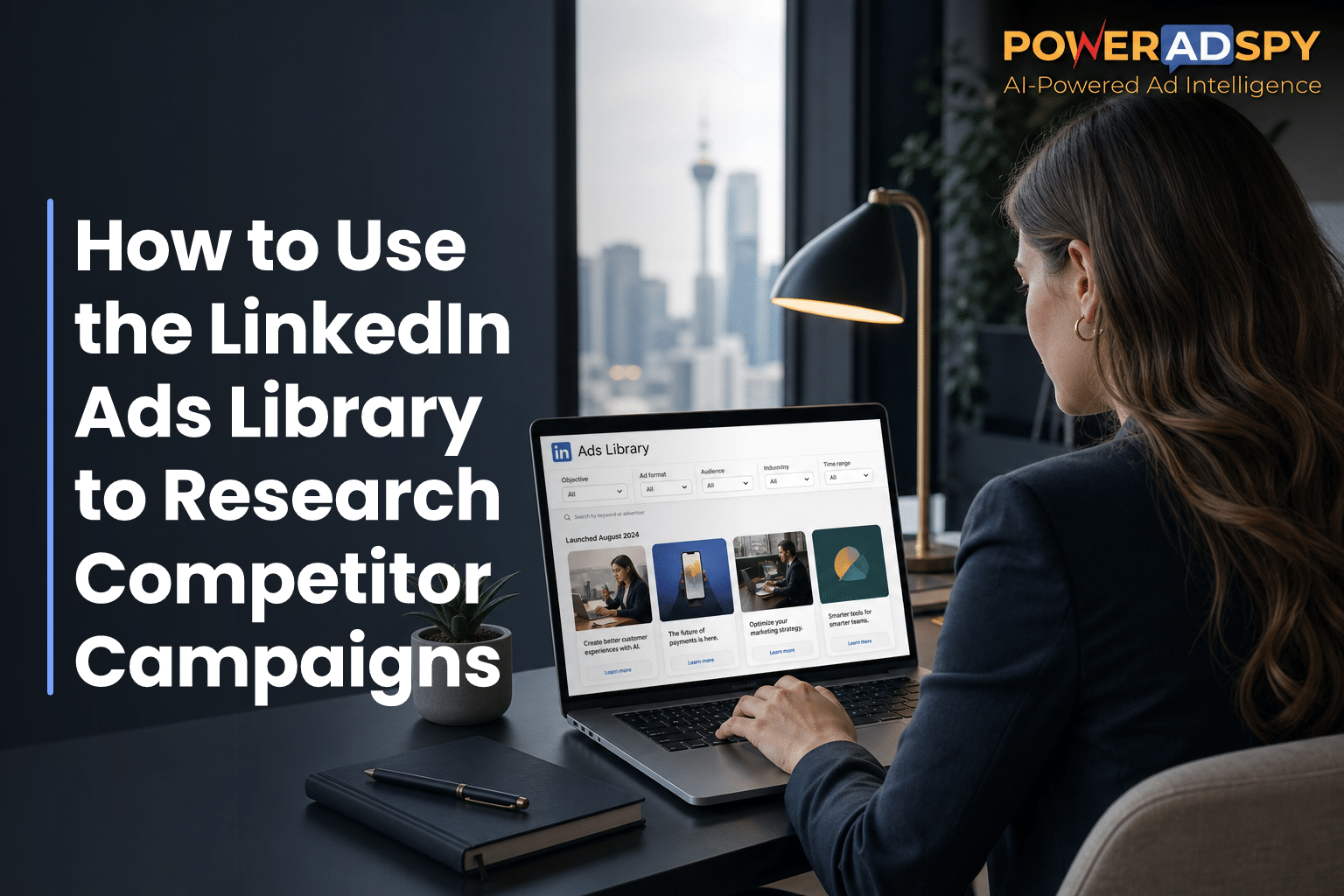
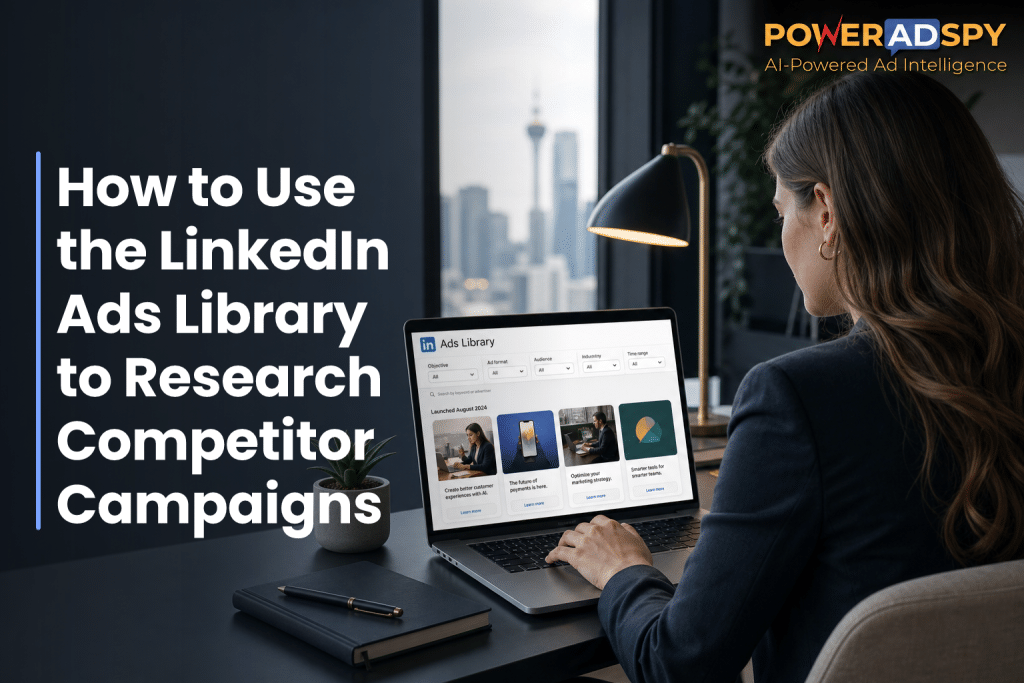
The LinkedIn Ad Library is a public index of active ads run by any LinkedIn Page. You don’t need a media budget or a special login. You look up a brand, and you’ll see the live ads that Page is paying for right now. You can then filter those ads by country, format, and a basic date window. That makes it a fast way to use linkedin ads library findings to scope a rival’s current push.
Specifically, each ad card shows:
- Creative: image, video, or carousel preview
- Text: primary copy and headline
- CTA: the call-to-action label
- Dates: when the ad started and its active date range
- Payer: the entity that paid for the ad (helpful when agencies or sister brands fund campaigns)
- Destination: the landing page URL domain (not full analytics)
What You’ll See vs. What You Won’t
You’ll see which ads are live, how they look, and how the brand frames value today. However, you won’t see performance metrics like impressions, clicks, or spend. You also won’t get a full historical archive. As of 2026, the native library focuses on current ads rather than long-term history or engagement trends.
- What you won’t see:
- Likes, comments, or social proof counts
- Targeting details (titles, industries, firmographics)
- Budget, bid type, or optimization settings
- A full multi-year archive like you might expect from larger political ad databases
On balance, LinkedIn’s library is closer to a live showroom than a data warehouse. You can see what’s on the shelf and who stocked it, but not how fast it sells. That’s fine for message research and creative direction. You’ll learn how to fill the gaps later in this guide.
How to Search the LinkedIn Ads Library Step by Step
You don’t need a paid account to search. Follow these steps end to end the first time, then save your own checklist. This is the most reliable way to use linkedin ads library results without drowning in screenshots.
Navigate to linkedin.
Go straight to the library. You can browse without signing in, though being logged into your LinkedIn account can make brand name lookups easier.Search by advertiser name or keyword
Start with the advertiser’s LinkedIn Page name. If you can’t find it, try brand variants or product lines. You can also search by a keyword phrase to surface brands you don’t know yet.Filter by country, date range, and ad format
Narrow to the markets you care about. Pick the country where you sell. Set a date window that matches your timeframe, such as the last 30 or 90 days. Then choose formats (Single Image, Video, Carousel, or Thought Leader ads) to spot how they approach top-of-funnel vs. lead gen.Analyze individual ads
Open an ad card. Read the hook in the first 10 words. Scan the image or video frame for the core claim.
Note the CTA and landing page domain. Check the “Paid for by” field to see who funds the push. Save a copy of the creative and copy in your swipe file.
Track patterns across competitors
Repeat across 3–5 rivals. Look for repeats in offer framing (“Free audit,” “ROI in 30 days”), proof types (logos, case stats), and creative style (product UI vs. people). Also note ad longevity, if an ad has run across multiple date windows, the team likely sees results.Document findings for your own tests
Turn each pattern into one small A/B test idea. For example: “Try a ‘See inside the product’ UI shot vs. a human-centered image” or “Test ‘Book a 15-min demo’ vs. ‘Get a free report’ as CTAs.
Bonus: Boolean-Style Searches
You can shape keyword searches with simple operators. For a refresher on the concept, see this primer on Boolean search.
- Use quotes for exact phrases: "SOC 2"
- Use OR for variants: SOC 2 OR ISO 27001
- Use AND to combine: compliance AND audit
- Use minus to exclude: security -antivirus
Sample queries to try:
- "pipeline visibility" OR "sales velocity"
- "SOC 2" AND automation
- "AI assistant" -consumer

A quick live walkthrough can show you how to turn raw ad cards into test-ready notes in minutes.
Also Read!
How to Use the Meta Ads Library for Competitor Research and Ad Inspiration
Common Mistakes When Using the LinkedIn Ads Library
It’s easy to browse. It’s harder to pull out clear, testable ideas. Here are the traps that waste time, and how to avoid them so you truly use linkedin ads library research well.
Only checking one competitor
If you look at a single brand, you’ll copy their quirks. Fix: line up 3–5 direct rivals plus 2 aspirational brands in your space. Map messages that repeat across them. Those themes are your higher-probability bets.Ignoring ad longevity signals
You can’t see clicks, but you can see if an ad reappears across weeks. Fix: log the start date and last-seen window. If an ad persists for 30+ days, treat it as a keeper idea.Copying creative instead of extracting strategy
A font or color isn’t the lesson. Fix: ask “What job does this ad do?” Is it promising speed, proof, or clarity? Turn that into a testable claim in your own brand voice.Not filtering by geography
Global results can mask local angles. Fix: filter for the exact countries you target so you see price points, proof, and language that match your buyers.Overlooking Thought Leader ads
Brands promote posts from executives or creators to add trust. Fix: include Thought Leader ads in your scan. Note tone, proof type, and CTA. Decide if your team has a voice who can run that play.Failing to track changes over time
One snapshot isn’t a strategy. Fix: schedule a 20-minute scan every two weeks. Update your swipe file and mark new vs. recurring motifs.
“We used to struggle with Facebook ads for lead generation. It felt like we were throwing darts in the dark. PowerAdSpy helped us see what our competitors were doing right, and suddenly, things clicked. The clarity of the tool makes ad decision-making much easier.” — Steve Decker, SaaS Marketing Manager
Finally, keep your notes focused. For each pattern, write one sentence on what it is, one on why it might work, and one on how you’ll test it. That’s how you move from browsing to building.
Tools That Go Beyond the LinkedIn Ads Library
The native library is great for a live peek at creative and copy. However, it has hard limits: no engagement data, no deep historical archive, and no cross-platform view. As of 2026, you’ll still need other sources to see performance context or to compare LinkedIn against Meta, Google, or Reddit.
Tools like PowerAdSpy can fill these gaps without replacing the library.
- Access to data on millions of ads from over 100 countries
- AI-powered ad intelligence across Facebook, Instagram, TikTok, Google, Reddit, Pinterest, and more
- full filters and reliable reports to turn broad searches into sharp insights
Moreover, PowerAdSpy users report concrete gains: a 15% reduction in A/B testing volume under two months of usage and a 19% improvement in user revenue with decreased workforce and increased work efficiency (PowerAdSpy user stats). In addition, 26% say they save at least one day preparing for an advertising project, while 23% call it affordable, easy, and complete (PowerAdSpy user stats).
Complementary Tools and Benchmarks
You can also use Semrush for PPC research on keywords and competitor domains, and you can check LinkedIn Campaign Manager’s benchmarking features to compare your CTR or CPC to peers. Those tools complement your scans, but the library remains your easiest way to see live creative choices. In practice, you’ll use linkedin ads library for message discovery, then a third-party tool for cross-platform context and engagement clues.
**Get Campaign Insights. Free Trial →
Try a cross-platform scan to validate whether LinkedIn’s winning theme also works on Meta or YouTube.
What to Do Next: Turn Ad Research into Better Campaigns
You’ve got notes and screenshots. Now make it count. The quickest way to ship progress this week is to turn your research into one clear test per theme. This is how teams use linkedin ads library work to improve, not just observe.
Build a swipe file
Create a shared doc or folder. For each ad, save the image/video and copy. Add three tags: claim, proof, and CTA.Create a competitor tracking cadence
Every two weeks, scan 3–5 core rivals plus 2 stretch brands. Log new vs. recurring themes. Keep a tally of how many weeks each theme persists.Identify messaging gaps in your niche
List the top three claims you did not see competitors make. That’s your chance to own a fresh angle.Test one new creative approach informed by research
Pick your highest-confidence theme. Ship one A/B in your next sprint (for example, proof-led headline vs. speed-led headline). Keep the rest of the ad stable so the result is clean.
For a cross-platform view of how brands express similar messages on Facebook and Instagram, review this step-by-step Meta Ads Library tutorial for inspiration. It pairs well with your LinkedIn scan and helps you design consistent tests across channels.
Finally, block 45 minutes on your calendar right now: 15 to scan, 15 to tag, 15 to write one test. Speed beats perfection.
**Get Instant Access. Free Trial →
Key Takeaways
- The LinkedIn Ad Library shows live ads with creative, copy, CTA, dates, and payer info—but not engagement or budget.
- Scan 3–5 competitors, filter by country and format, and log recurring themes you can A/B test next.
- Use Boolean-style searches with quotes, AND, OR, and minus to broaden or narrow discovery.
- Pair the library with a cross-platform tool for engagement context and trend history to back your choices.
- Ship one focused test per insight; schedule a brief scan every two weeks to keep learning in 2026.
What to Do This Week
Block one hour. Search your top five competitors in the LinkedIn Ad Library, filter for your country, and tag each ad’s claim, proof, and CTA. Then write one A/B test that reflects the strongest recurring theme. Next, choose a cross-platform tool to check whether that theme also wins beyond LinkedIn. Repeat in two weeks, and you’ll build a steady loop from research to results.