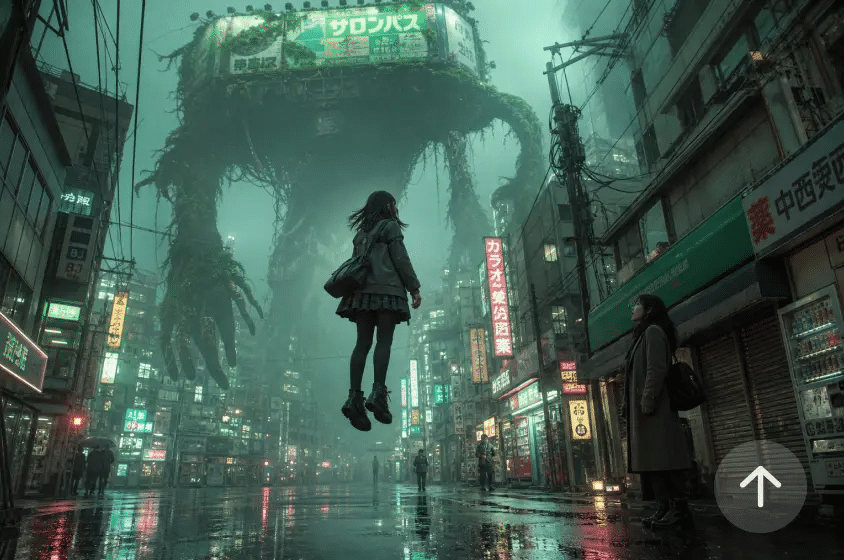
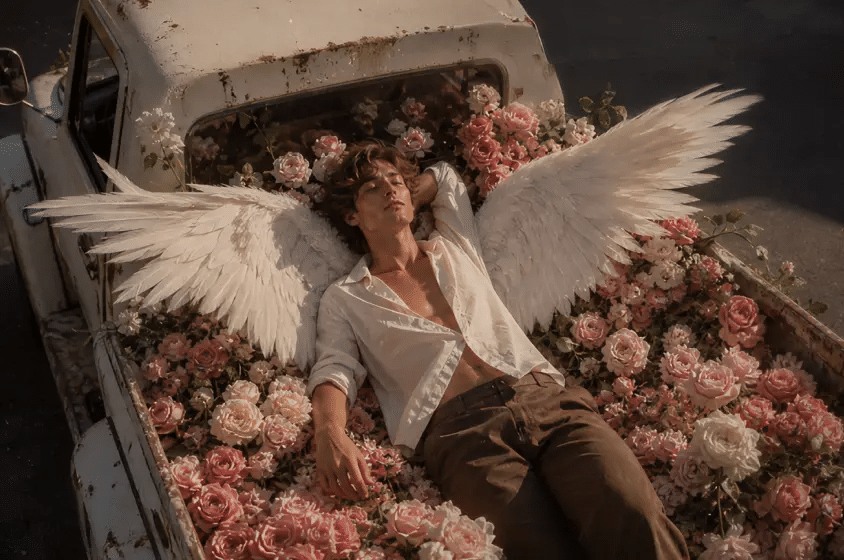
Describing an idea in words is not enough to create a particular image. Photos can tell a story that written instructions can’t, such as the look of a subject, color, and texture. Multimodal image generation involves the use of all these inputs to produce more controlled visual results. Dreamina AI combines image generation with photo editing, allowing creators to materialize their concepts into detailed images. A combination of appropriate reference and careful prompting can be used to explore ideas and to develop images without re-composing them.
What Makes a Multimodal AI Image Generator Different?
Multimodal image generation receives various types of inputs (e.g., text and images) and understands creative instructions. The text-to-image workflows mainly use written descriptions; multimodal workflows add visual references. Text describes the changes meant to be made, while photos show what something looks like, how it is framed, and how it looks. At Dreamina AI, you can find the AI Image generator that comes with models like Seedream 5.0 Pro, GPT Image 2, and Nano Banana. Results may vary depending on the task, as each model has different capabilities. References are used to direct the generation and not to ensure exact reproduction. These workflows can be used for concept art, product visuals, illustrations, portraits, promotional graphics, and more.
Prepare Reference Photos and Write Instructions That Work Together
Select reference images based on their use. A portrait may suggest a way to shape the face, or a landscape may suggest a way to create composition, atmosphere, or color relationships. Figure out the key features before drafting the prompt: Where is the subject, what is the clothing, expression, objects, and environment. Use clear language to explain how you want the treatment to be (cinematic photography, watercolor illustration, diffused studio lighting, etc.). State what parts will change and what parts will stay the same. When the reference has blue clothes and the final image needs green clothes, then say it outright. Visual guidance, combined with written instructions, is interpreted by Dreamina AI without unnecessary changes to unrelated details with the help of clear priorities.
Steps to Blend Detailed Instructions With Photos in a Multimodal AI Image Generator
Step 1: Set up your workspace and describe the blend
- First, sign up or log in to Dreamina to start your multimodal image creation today.
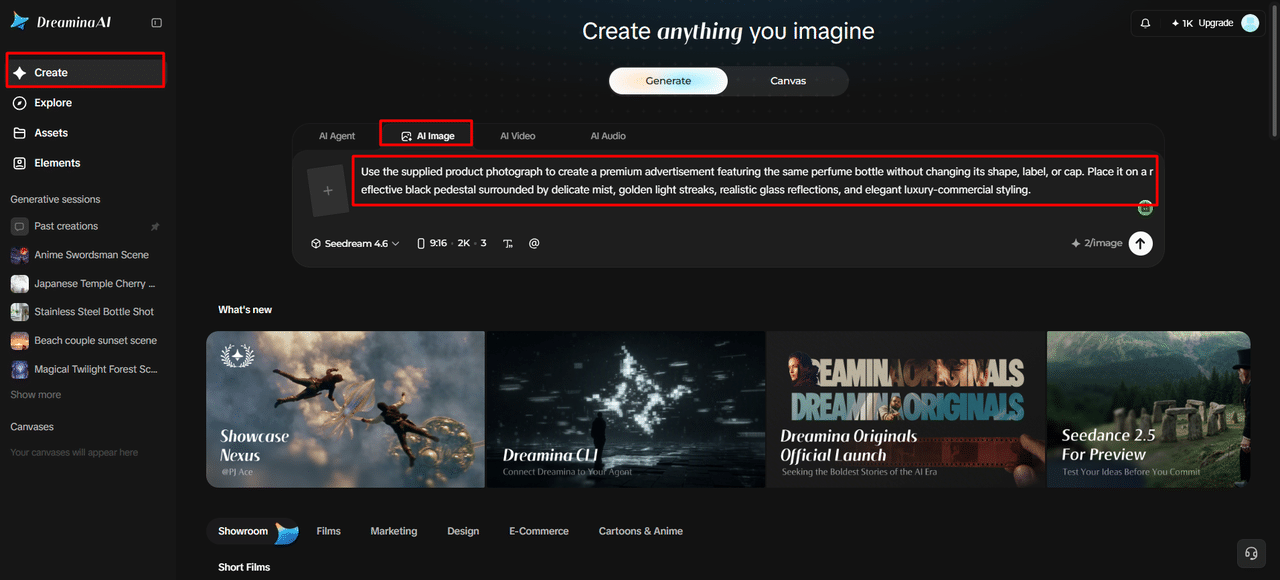
- Next, open the “Create” tab from the left menu and then pick the “AI Image” option.
- Later, write a detailed text prompt about how your final image should look and feel. Add details about image elements, theme, and concept so the instructions stay clear and specific.
Step 2: Add reference photos and fine-tune the settings
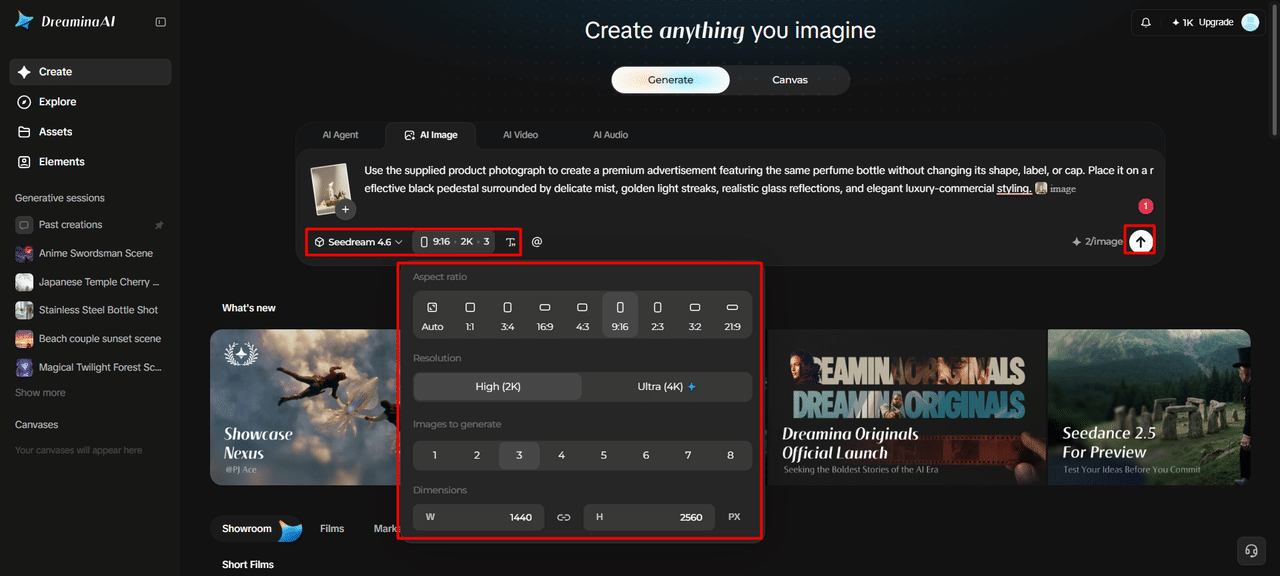
- Next, pick the image model from the options at the bottom of the dialogue box.
- Choose Seedream, GPT Image, or Nano Banana, depending on which style suits your blended idea.
- Upload a reference image so Dreamina can make your result more precise and look natural.
- Then, select a custom aspect ratio and resolution from the “Aspect ratio” and “Resolution” tabs.
- Use the “Images to generate” tab to choose how many images you want to create. You can also set the custom dimensions of your image through the “Dimensions” tab easily.
- If you need words inside your image, use the “Draw text on image” tab.
- Finally, click the “Generate” tab to begin the creation process for your new blended image.
Step 3: Refine the results and export
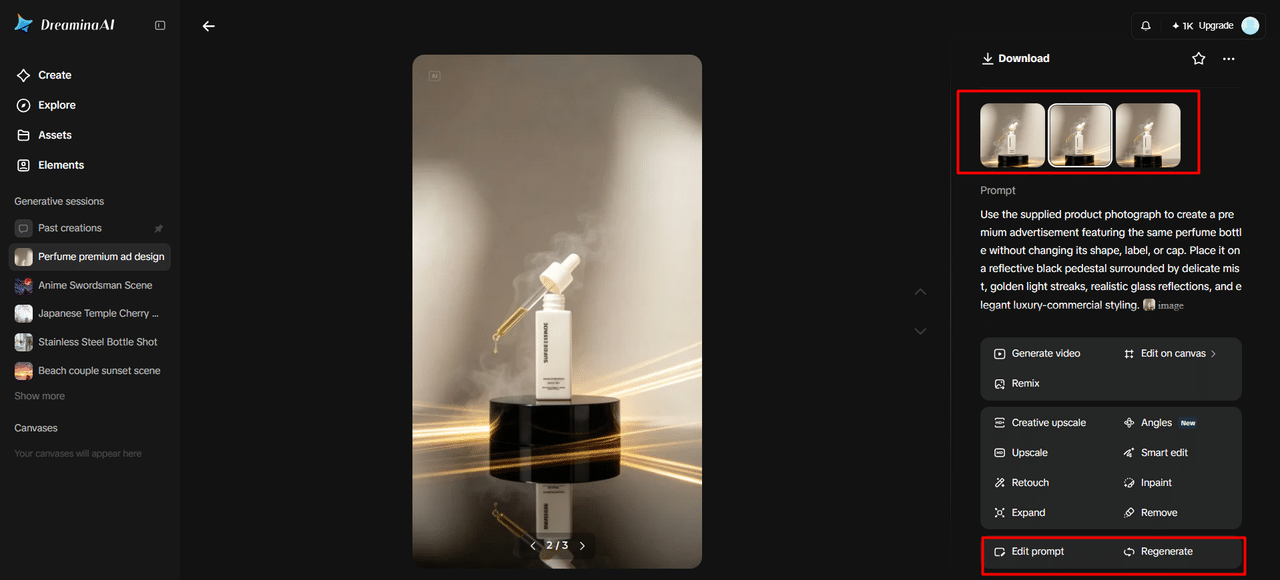
- Dreamina then shows the required number of drafts so that you can compare each blended result. If you dislike the outcome, use “Edit prompt” or “Regenerate” to refine the generated results.
- Next, upscale the generated image with the “Creative upscale” option for sharper and cleaner detail.
- Moreover, try “Retouch” to correct, clean up, or enhance the details of the selected image.
- Use “Remove” to erase anything unwanted from your image without having to start over again. Or widen the frame with the “Expand” tab to add more space around your subject.
- If you want to animate your finished image, use the “Generate video” tab.
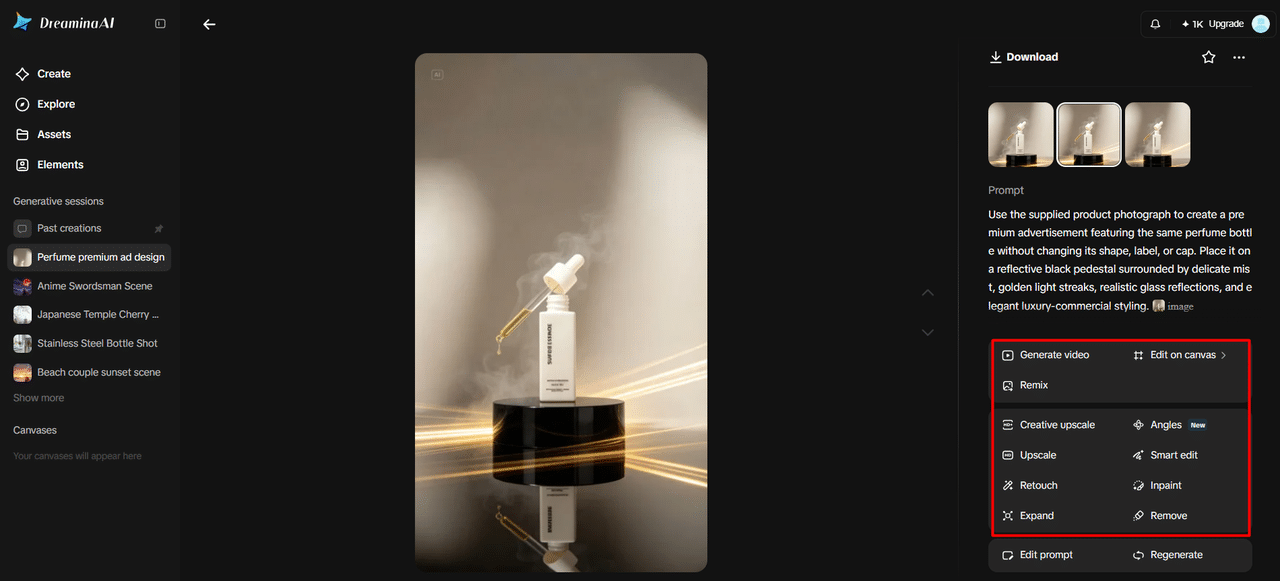
- Dreamina gives you complete freedom to edit your image exactly the way you like it.
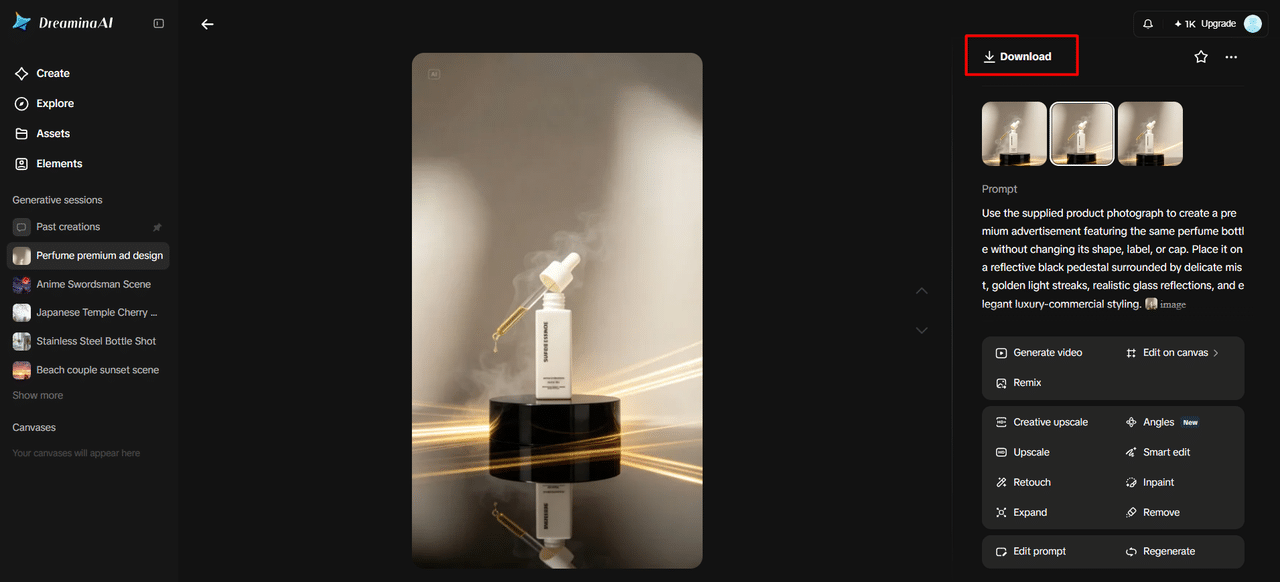
- Finally, click the “Download” tab that sits at the top right corner of the interface. This saves the image file on your local device for quick use anywhere you like.
Build Better Prompts by Assigning a Clear Role to Every Input
List prompts under the topic, action, environment, composition, lighting, style, and output requirements. Have the reference set a “visual baseline” and have written directions provide the desired change. Do not give mixed messages, fuzzy adjectives, and irrelevant information that blurs priorities. For instance, “Create a beautiful product image” doesn’t give any indication as to where or how it will look. The new multimodal prompt is: “Use the reference bottle, place it in the center with the warm beige background, add soft studio light and keep its label. This structure helps to explain the desired outcome. Iterate and optimize one critical parameter at a time to enhance alignment while not discarding the fundamental idea.
Control Composition, Lighting, Style, and Visual Consistency
Composition involves the relationship of the subject, object, and space inside the frame. Where required, use close-ups, wide shots, centering on a subject, and foreground-background separation. Lighting descriptions can also affect atmosphere, such as soft lighting and diffused lighting in a studio, rim lighting, and dramatic shadows. Identify predominant colors, textured surfaces, contrast, and artistic direction to ensure visual continuity. Dreamina AI offers specific editing modes, including selections, points, arrows, bounding boxes, coordinates, sketches, doodles, and simple shapes. These tools can be used to convey changes to the background, clothing, hairstyles, or lighting. Check faces, hands, proportions of objects, edges, and background transitions before exporting.
Common Multimodal Generation Problems and Practical Fixes
- Reference dominates prompt; make the intended change more explicit and specify features that have to change.
- Subject appearance becomes inconsistent: Simplify the transformation and reinforce the key visual traits.
- Composition: Edit out distracting elements; establish foreground, subject, and background spaces.
- Colors wander off-topic: Identify dominant colors and indicate where each color should be used.
- Retouching of small details is distorted: If a retouch is available, apply it; otherwise, re-create using simpler instructions.
- Output dimensions seem inappropriate: Decide on the desired aspect ratio prior to generation or enlarge the canvas post-generation.
Conclusion
Multimodal generation is the use of written intent and visual guidance for enhancing creative control. Structured prompts establish what needs to be changed, and carefully chosen references describe appearance and composition. Dreamina AI offers a single platform to create, edit, and refine visual ideas. Effective choice of models and specific editing can improve images for various creative uses. Test systematically, varying one significant variable at a time. If you have reference photos and written instructions that complement each other, image generation is a more conscious and controllable creative process.