
Master Facebook Pixel Setup: Track Conversions Easily
If you run ads on Facebook or Instagram, tracking what happens after someone clicks your ad is essential. This is where the Facebook Pixel setup becomes important.
The Facebook Pixel is a small piece of code that you add to your website to track visitor activity. It helps you understand whether people view a page, sign up for a form, or complete a purchase after clicking your ad.
Without this tracking, it becomes difficult to know which ads are actually working. You might see clicks, but you will not know if those clicks turn into real results. The pixel solves that problem by sending website activity back to Meta, so your campaigns can measure conversions and improve targeting.
In this Facebook Pixel setup guide, you will learn what the pixel is, how it works, and how to set up Facebook Pixel correctly on your website. We will also cover event tracking, testing your installation, and common mistakes that can affect your data.
Read Aloud
What Is Facebook Pixel?
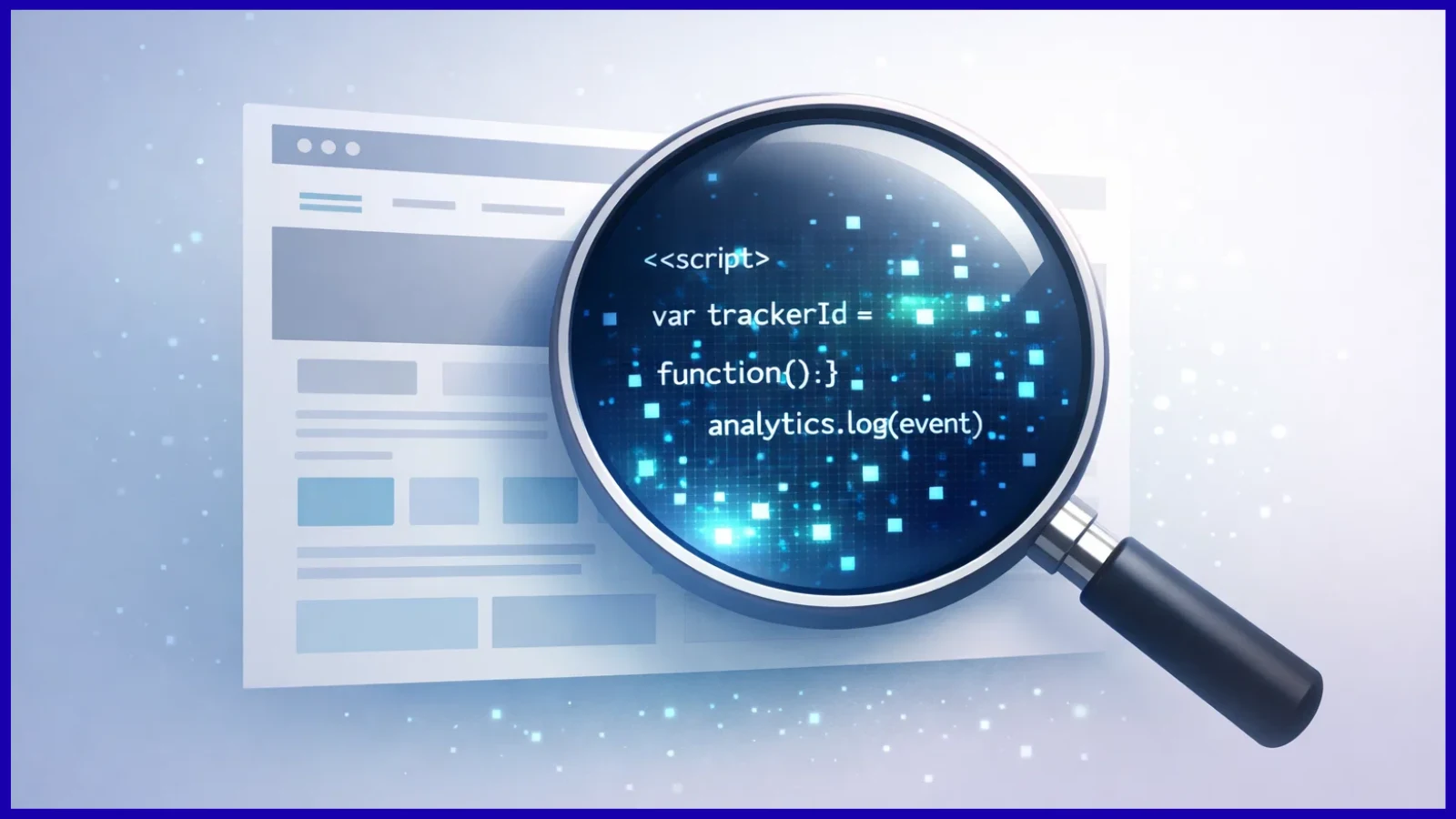
The Facebook Pixel is a small tracking script provided by Meta. When you add the Facebook Pixel code to your website, it records certain actions visitors take while browsing your pages.
For example, the Facebook Pixel setup helps the pixel detect when someone visits a product page, submits a contact form, or completes a purchase. These actions are sent back to Meta’s advertising system so you can see what happens after someone clicks your ad.
Many people think of the pixel as a connection between their website and their advertising account. Without it, Meta can only track activity inside Facebook or Instagram. Once the pixel is installed, it can also see what users do on your website.
That insight makes a big difference. Instead of guessing which ads work, you can measure real results.
Who Should Use Facebook Pixel?
Anyone running Meta ads can benefit from using the pixel, but it becomes especially valuable for certain types of websites.
Small business owners use it to see which ads bring real customers. E-commerce stores rely on it to track purchases and shopping behavior. Marketers use the data to improve campaign performance and audience targeting.
The pixel is particularly useful for:
• Ecommerce websites selling products online
• Lead generation sites collecting form submissions
• Service businesses offering consultations or bookings
• Marketers managing Facebook or Instagram campaigns
If your goal is to understand what visitors do after clicking an ad, installing the pixel is one of the most important steps.
Why Facebook Pixel Setup Matters for Advertising
Advertising platforms perform best when they receive clear data signals. The more information the system receives about user behavior, the easier it becomes for the algorithm to identify people likely to convert.
The pixel provides those signals.
Instead of optimizing ads only for clicks, Meta can learn from actual outcomes. This might include purchases, registrations, downloads, or form submissions.
Over time, the data collected from your pixel helps you:
• Measure conversions accurately
• Create retargeting audiences.
• Improve ad targeting
• Allow the algorithm to find users who are more likely to convert
Think of the pixel as feedback for your advertising campaigns. Your website sends user activity data back to Meta, and the platform uses that information to deliver ads to better audiences.
How Facebook Pixel Setup Works
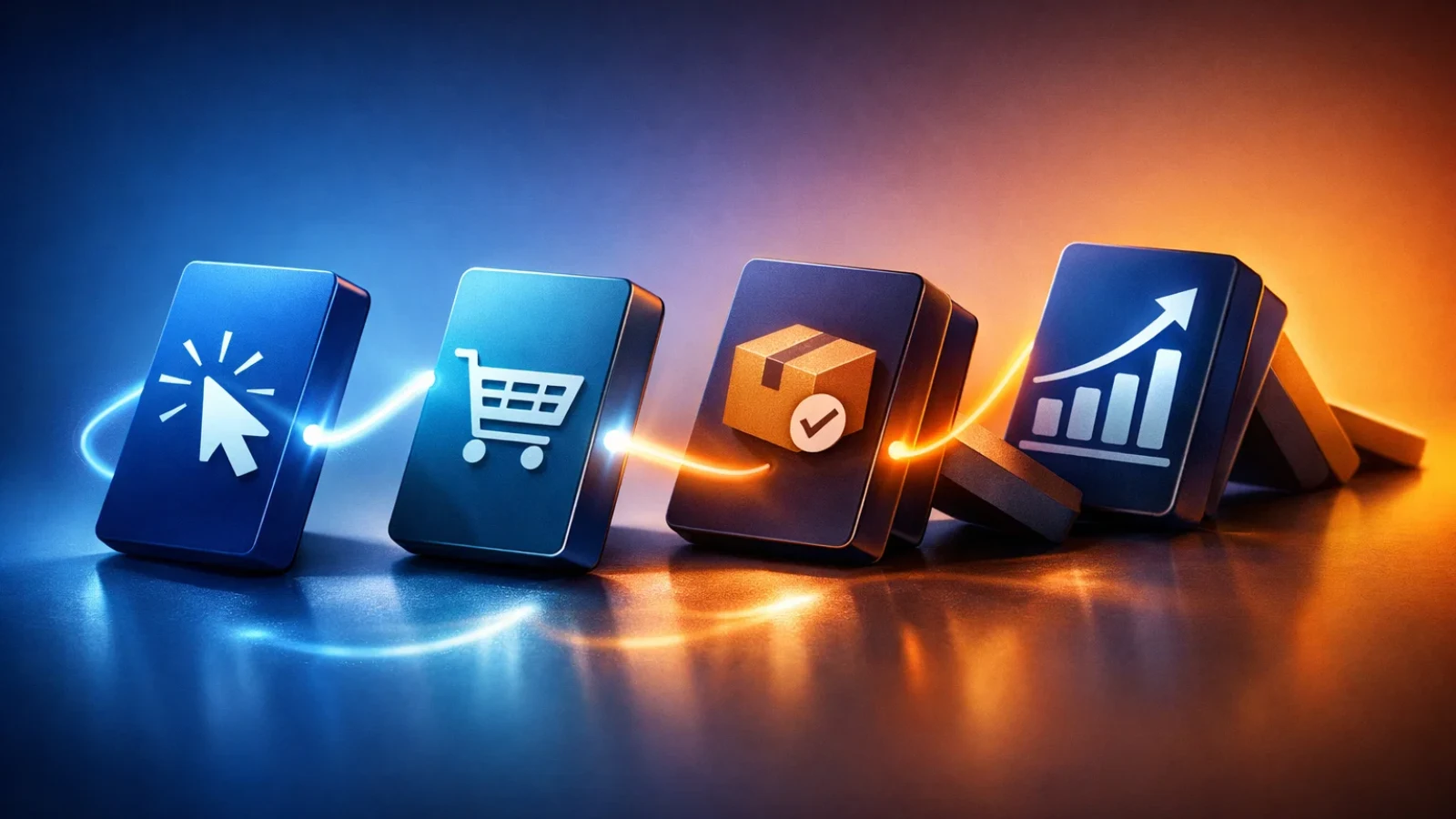
Once the pixel is installed, it starts tracking activity on your website.
Each time someone visits a page or performs a specific action, the pixel records that interaction. The data is then sent to Meta Events Manager, where advertisers can review the activity and measure campaign performance.
For example, a visitor may click a Facebook ad and land on a product page. If the person later adds the product to the cart or completes a purchase, the pixel records those steps.
Over time, these signals help Meta understand which types of users are most likely to convert. The advertising system then uses this information to improve campaign delivery.
Even though the technology behind it is advanced, the process itself is quite simple. A visitor arrives on your website, the pixel records the action, and the information is sent back to your advertising dashboard.
Types of Actions the Facebook Pixel Setup Can Track
The Facebook Pixel tracks actions known as events. Events represent meaningful activities performed by visitors on your website.
Some events are predefined by Meta and commonly used by advertisers. These are known as standard events.
Examples include page visits, product views, purchases, and form submissions.
Tracking these actions helps you understand how visitors move through your website. Instead of only measuring traffic, you begin to see patterns in user behavior.
For example, you might discover that many visitors view a product page but never complete the checkout process. That insight can help you improve your sales funnel or adjust your advertising strategy.
Where You Create the Facebook Pixel Setup
The pixel is created inside Meta Events Manager, which is the dashboard used to manage tracking data.
Events Manager allows you to create data sources such as pixels and connect them to your website. If you already use Meta Ads Manager, you will find Events Manager in the same platform menu.
Creating a pixel usually takes less than a minute.
You simply open Events Manager, add a new data source, choose the web option, and create a pixel. After that, Meta generates a Pixel ID and provides the installation instructions.
At this stage the pixel exists in your account, but it will not track anything until the code is installed on your website.
How to Set Up Facebook Pixel Step-by-Step
Now that you understand what the pixel does, the next step is installing it on your website. The process is straightforward and can usually be completed in a few minutes.
Step 1: Create a Pixel in Meta Events Manager
Start by logging into your Meta Business account.
Open the menu and navigate to Events Manager. Inside the dashboard, choose the option to add a new data source and select Web.
Next, select Meta Pixel and give your pixel a name. Many businesses use their website or brand name to keep things organized.
Once the pixel is created, Meta will display the Facebook Pixel code along with several installation methods.
Step 2: Install the Pixel on Your Website
There are a few ways to install the pixel depending on how your website is built.
Many platforms include built-in integrations that make installation very simple. For example, platforms like Shopify, WordPress, Wix, and Squarespace allow you to add the pixel using a settings field.
In these cases, you usually only need to paste your Pixel ID or connect your Meta account.
If your website uses a custom setup, you may need to add the Facebook Pixel code manually. This involves copying the code snippet provided by Meta and placing it inside the head section of your website pages.
Some marketers prefer using Google Tag Manager instead. This method allows you to manage multiple tracking tools from a single dashboard without editing the website code directly.
Step 3: Set Up Tracking Events
After installing the base pixel, the next step is configuring events.
The base pixel tracks page visits automatically, but events allow you to track more meaningful actions. These actions might include purchases, contact form submissions, or newsletter sign-ups.
Meta provides standard events that work for most businesses. These include actions like purchases, leads, or product views.
Some websites also use custom events to track unique interactions such as button clicks or video views.
The type of events you track should match your business goals. An e-commerce store will focus on purchase-related events, while a service business might focus on lead generation.
Step 4: Verify That the Pixel Works
Before running ads, it is important to confirm that the pixel is working correctly.
Meta offers several tools that help with testing.
One common method is using the Meta Pixel Helper browser extension. This tool shows whether the pixel fires when a page loads.
You can also use the Test Events tool inside Events Manager. This feature allows you to visit your website and monitor events as they occur in real time.
If the events appear in the dashboard, your installation is working properly. If not, it is best to troubleshoot before launching any campaigns.
Read More
The Facebook Pixel| 06 Ways To Improve Your Facebook Marketing
How to Use Meta Events Manager for Successful Facebook Campaigns?
Common Facebook Pixel Setup Mistakes
Even small setup mistakes can affect your tracking data. Fortunately, most problems are easy to fix once you know what to check.
One frequent mistake is installing the pixel on only a single page. The base code should be present on every page of your website so visitor behavior can be tracked across the entire site.
Another common issue is forgetting to configure important events. If only page visits are tracked, the advertising system receives very little useful data.
Duplicate events can also occur when multiple tracking tools fire the same event. This sometimes happens when both Google Tag Manager and manual code installation are used together.
Many beginners also skip the testing step. Verifying the installation before launching ads helps prevent inaccurate data and campaign issues later.
Advanced Facebook Pixel Setup Strategies for Better Ad Performance

Once your pixel collects enough data, you can begin using that information to improve your marketing strategy.
One effective approach is retargeting. This allows you to show ads to people who previously visited your website but did not complete a purchase or sign up.
For example, someone who viewed a product page can later see an ad reminding them about that product.
Another powerful technique is creating lookalike audiences. Meta analyzes your existing customers or website visitors and identifies similar users across its platform.
Some advertisers also use the Conversions API to strengthen tracking accuracy. This method sends event data directly from the server instead of relying only on browser tracking.
How PowerAdSpy Can Support Your Facebook Advertising Research

After completing your Facebook Pixel setup, many advertisers want to understand which types of ads actually perform well in their niche. Instead of guessing, studying existing campaigns can provide useful insights before launching your own ads. Tools like PowerAdSpy help marketers research social ads and analyze real advertising activity across industries.
Some useful capabilities include:
- Data Of Millions Of Ads From 100+ Countries
PowerAdSpy provides access to a large and continuously growing database of ads from over 100 countries. This helps marketers discover trending and successful ads across different markets. - Narrow Down Your Searches
The platform allows users to search ads using niche keywords, advertiser names, or even competitor domains. This makes it easier to analyze how competitors structure their ad campaigns. - Complete visibility
Users can visit live ad posts directly from the platform to check real-time engagement and audience reactions. - Powerful Search Algorithm
Ads can be searched using keywords or phrases and then sorted by shares, likes, comments, or date to identify ads with strong engagement.
By analyzing existing campaigns and engagement data, advertisers can better understand what strategies are being used in their niche before creating new ad campaigns.
Final Thoughts
The Facebook Pixel Setup may look like a small piece of code, but it plays a major role in how Meta advertising works.
Once your Facebook Pixel setup is complete, your website begins sending useful data back to your advertising account. That information helps you understand visitor behavior and measure the real impact of your campaigns.
For beginners, the most important steps are simple. Install the pixel correctly, configure the right events, and test the tracking before launching ads.
When the pixel is set up properly, every campaign you run benefits from better data and smarter optimization.
FAQ
Do I need coding knowledge to install Facebook Pixel?
Not necessarily. Many website platforms provide simple integrations that allow you to add the pixel without editing code. Platforms like Shopify, WordPress, and Wix include built in options that make installation straightforward.
How long does it take for the pixel to start tracking?
The pixel begins tracking activity almost immediately after installation. However, it may take a few minutes before the data appears inside the Events Manager. Running a test visit to your website can confirm that the tracking is working.
Can one pixel track multiple websites?
Yes, a single pixel can track more than one domain. However, many businesses prefer creating separate pixels for different brands or websites so that their data remains organized.
What happens if the pixel is installed incorrectly?
Incorrect installation may result in missing data, duplicate events, or no tracking at all. Using testing tools such as Pixel Helper or the Events Manager test tool can help identify and fix issues quickly.
Is Facebook Pixel Setup still useful after privacy updates?
Yes. Even with privacy changes, the pixel continues to provide valuable insights about website activity and conversions. Many advertisers combine pixel tracking with the Conversions API to improve data reliability.